Free IT Ticketing System for Small Teams: Complete Guide
Find the best free IT ticketing system for your small team. Compare options, learn setup tips, and discover what features actually matter.
Your IT team is drowning. Requests come through Slack, email, hallway conversations, and that one guy who always walks up to your desk. Something needs to change, but enterprise helpdesk software costs thousands per year and takes months to implement.
Good news: free IT ticketing systems exist, and they're more capable than ever. This guide helps you find the right one for your team.
What to Look for in a Free IT Ticketing System
Not all free tiers are created equal. Some are glorified trials; others are genuinely usable for small teams. Here's what matters:
Must-Have Features
- **Unlimited users** — Your whole team should access it, not just IT staff
- **Email or form submission** — Multiple ways for employees to submit requests
- **Status tracking** — Clear visibility into pending, in-progress, and resolved tickets
- **Assignment** — Ability to assign tickets to specific team members
- **Basic reporting** — Know how many tickets you're handling
Nice-to-Have Features
- **Auto-assignment** — Distribute tickets fairly without manual intervention
- **Custom forms** — Capture the right information for different request types
- **Knowledge base** — Let employees self-serve for common questions
- **SLA tracking** — Monitor response and resolution times
Red Flags
- **User limits** — If the free tier only allows 3 agents, you'll outgrow it fast
- **Branding you can't remove** — "Powered by..." on every email looks unprofessional
- **No data export** — You should own your data
- **Feature lockout** — Core features hidden behind paid tiers
Comparing Free IT Ticketing Options
Option 1: Lightweight Visual Tools (Best for Small Teams)
Tools like Requester.pro focus on simplicity over features. Instead of complex ticket queues, you get visual Kanban boards that show status at a glance.
**Pros:**
- Setup in minutes, not days
- No training required
- Visual interface reduces ticket pile-up anxiety
- Fair auto-assignment built in
**Cons:**
- May lack advanced features like SLA automation
- Limited integrations compared to enterprise tools
**Best for:** Teams under 20 people who want simplicity over power features.
Option 2: Open Source Helpdesks
Tools like osTicket and FreeScout offer full-featured helpdesk functionality for free.
**Pros:**
- No user limits
- Full feature set
- Self-hosted = full control
**Cons:**
- Requires technical setup and maintenance
- Self-hosting means you manage security/updates
- Steeper learning curve
**Best for:** Teams with technical resources who want maximum control.
Option 3: Freemium Enterprise Tools
Big names like Freshdesk and Zendesk offer free tiers, though with limitations.
**Pros:**
- Proven, mature software
- Lots of integrations
- Upgrade path if you grow
**Cons:**
- Free tiers are limited (often 2-3 agents max)
- Complex interfaces designed for enterprise
- You'll hit paywalls quickly
**Best for:** Teams planning to scale significantly and willing to pay later.
Setting Up Your Free IT Ticketing System
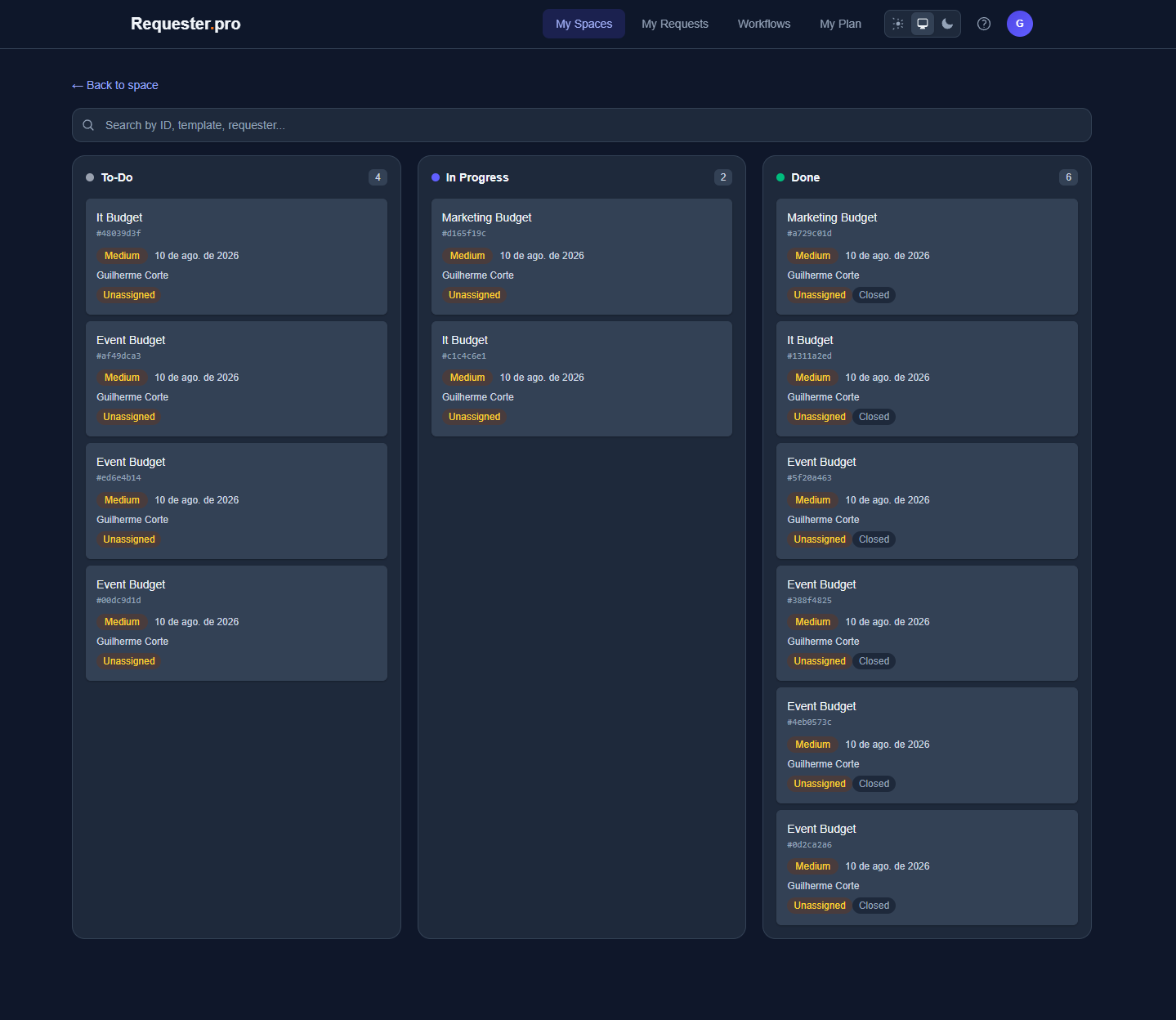
Regardless of which tool you choose, the setup process follows similar steps:
1. Define Your Ticket Categories
Common IT request categories:
- **Hardware Issues** — Laptop problems, monitor not working, keyboard replacement
- **Software Requests** — Need new software installed, license requests
- **Access & Permissions** — Account creation, password resets, permission changes
- **Network/Connectivity** — VPN issues, WiFi problems, can't connect
- **General Questions** — How do I...?, Where do I find...?
Start with 4-6 categories. You can always add more.
2. Create Intake Forms
For each category, decide what information you need:
**Hardware Issues:**
- Device type (laptop, monitor, phone)
- Description of the issue
- Urgency level
- Location/remote
**Access Requests:**
- System/application name
- Type of access needed
- Business justification
- Manager approval (if required)
Keep forms short. Every field you add reduces submission completion.
3. Set Up Your Team
Add everyone who will handle tickets. Decide on:
- **Who can view all tickets** — Usually the whole IT team
- **Who can assign tickets** — Team leads or everyone
- **Who gets auto-assigned** — All handlers or specific people for specific categories
4. Define Your Workflow
A simple three-stage workflow works for most teams:
- **New** — Ticket submitted, waiting for pickup
- **In Progress** — Someone is working on it
- **Resolved** — Issue fixed, waiting for confirmation
- **Closed** — Ticket complete
Some teams add a "Waiting on User" stage for when you need information from the requester.
5. Communicate to Your Organization
Send a simple announcement:
"Starting [date], all IT requests should be submitted through [link]. This helps us track and prioritize requests so nothing falls through the cracks. For emergencies, still call/Slack us directly."
Pin the submission link in common channels (Slack, Teams, intranet).
IT Ticketing Best Practices
Respond Quickly, Even If You Can't Resolve Quickly
Acknowledgment matters. A quick "Got it, looking into this" reduces follow-up pings and shows the requester they weren't ignored.
Use Templates for Common Responses
Create saved replies for frequent situations:
- "Password reset completed. Try logging in now."
- "Software installed. Please restart your computer."
- "Need more information: [specific questions]"
Templates save time and ensure consistent communication.
Track Resolution Time, Not Just Volume
Closing 50 tickets means nothing if average resolution time is 2 weeks. Monitor:
- **First response time** — How fast do you acknowledge?
- **Resolution time** — How fast do you actually fix things?
- **Tickets per category** — Where are most requests coming from?
Build a Knowledge Base
Every repeated question is a documentation opportunity. When you answer the same thing three times, write it down. Link to documentation in ticket responses.
Over time, this reduces ticket volume as employees self-serve.
Don't Let Tickets Rot
Set a personal rule: no ticket older than X days without an update. Weekly, review any ticket that's been sitting idle. Either make progress or communicate why there's a delay.
Common IT Ticketing Mistakes
Making Submission Too Hard
If employees have to fill out 15 fields to report a broken keyboard, they'll just walk up to your desk instead. Keep forms minimal.
No Escalation Path
Some tickets need management attention. Have a clear process for escalating critical issues.
Ignoring the Requester Experience
Your ticketing system serves two audiences: IT staff AND employees submitting requests. If the requester experience is bad, people won't use the system.
Over-Automating
Automation is powerful, but too much makes the system feel robotic. Balance efficiency with personal touch.
When Free Isn't Enough
Consider paid options when you need:
- **SLA enforcement** — Automatic escalation when tickets breach response times
- **Asset management integration** — Link tickets to specific devices/equipment
- **Advanced reporting** — Custom dashboards, trend analysis
- **Multiple departments** — IT, HR, Facilities all need separate systems
- **Compliance requirements** — Audit logs, data retention policies
Most small teams operate happily on free tiers for years. Upgrade when you feel actual pain, not anticipated pain.
Getting Started Today
You don't need a committee meeting or a procurement process. Pick a tool, set it up this afternoon, and start directing requests there tomorrow.
Requester.pro's free tier includes everything a small IT team needs: visual Kanban boards for tracking, auto-assignment for fair distribution, and custom forms for proper intake. No credit card required, no user limits, setup in under 5 minutes.
Frequently Asked Questions
How many tickets can one IT person handle?
It varies by complexity, but a well-organized IT support person can handle 15-25 tickets per day. Proper tooling increases this significantly.
Should I use the same system for internal IT and external customer support?
Generally, no. Internal IT and customer support have different needs, SLAs, and workflows. Use separate systems.
What's the difference between a ticketing system and a helpdesk?
Often used interchangeably. "Helpdesk" sometimes implies more features like knowledge bases and live chat. "Ticketing system" focuses on request tracking.
Can I migrate from email to a ticketing system without losing history?
You won't lose email history — it stays in your email. Start fresh with the ticketing system for new requests. Trying to import old emails usually creates more problems than it solves.
How do I get employees to actually use the system?
Make it easier than the alternative. If submitting a ticket is faster than sending an email, people will use it. Also, only respond to requests that come through the proper channel.